Discord Welcome Bot: Set Up a Welcome Channel That Actually Helps
Set up a Discord welcome bot: compare Discord's built-in welcome messages with a bot, write a custom message, handle membership screening and test it.
- Author
- The Clanzy team
- Updated
- Reading time
- 5 min read
Short answer
Discord can post a random built-in welcome line on its own, but you cannot edit the text. A welcome bot posts your own message in a welcome channel, mentions the newcomer and can point them to the next step. With Clanzy, type /setup welcome (or /setup all), then edit the message on the web dashboard and send yourself a test with /setup welcome-test.
Steps at a glance
- 1
Add the bot. Add Clanzy to your server and keep the suggested permissions. It does not ask for Administrator.
- 2
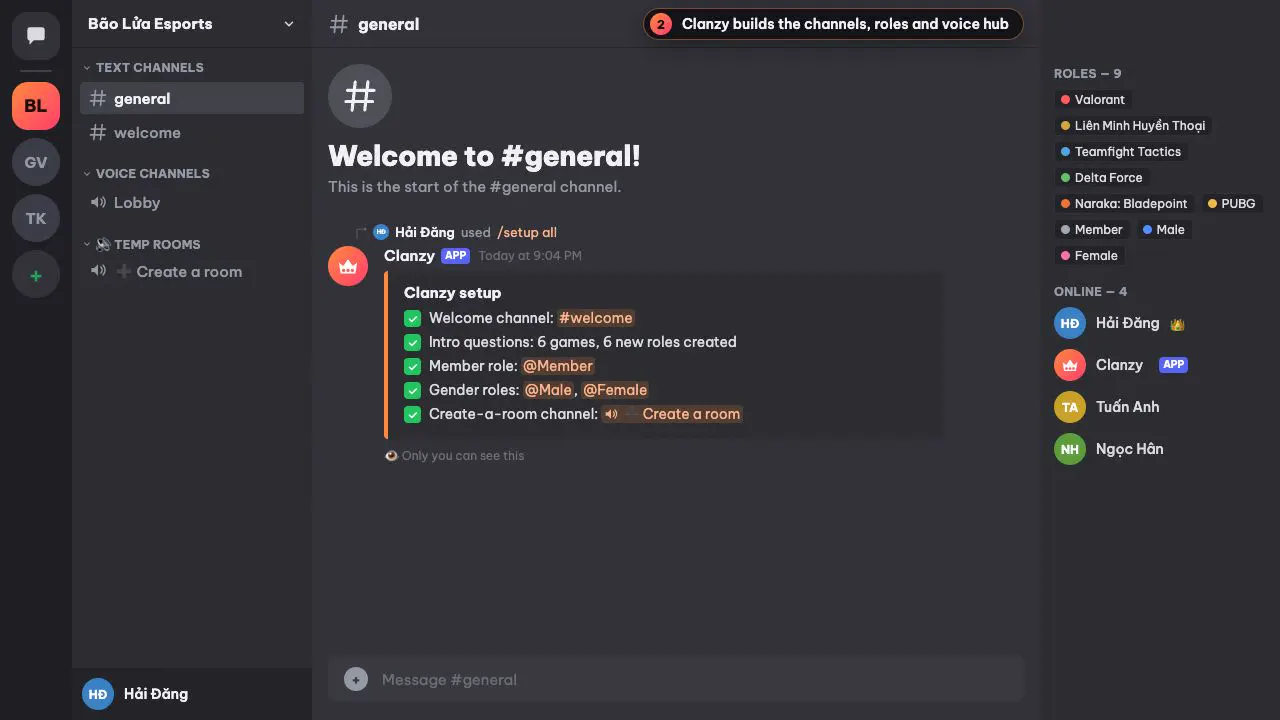
Create the welcome channel. Type /setup welcome to create a welcome channel, or /setup all to also create game roles and a temp voice hub.
- 3
Write your message. Log in to the dashboard with Discord and replace the default text, using {user}, {username}, {server} and {memberCount}.
- 4
Test it. Type /setup welcome-test to post the card for yourself, then press Get started to see what a newcomer sees.
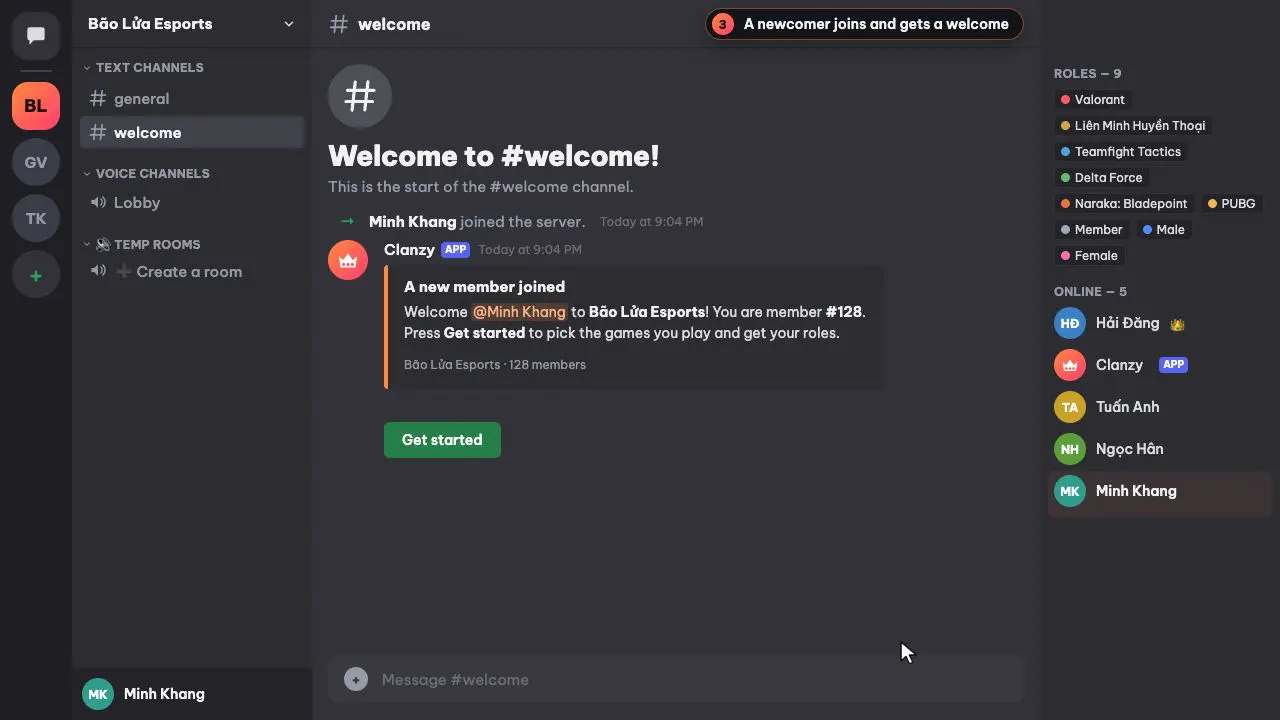
A welcome message is the first thing a new member reads in your server. Done well, it tells them where they are, mentions them by name and points to the one thing they should do next. Done badly, it is a wall of rules that nobody reads, or a random line from Discord that says nothing about your community.
This guide covers what Discord can do on its own, when a Discord welcome bot is worth adding, and how to set one up with Clanzy in about five minutes.
What Discord does without a bot
Discord has two built-in tools for greeting people.
System messages. Open Server Settings → Overview, pick a System Messages Channel, and turn on the option to send a random welcome message when someone joins. Discord then posts a short line such as "X just showed up" from its own list. On mobile, tap the server name, then Settings → Overview. It is quick, but you cannot change the text, add your server's name or link anyone to a next step.
Onboarding (Community servers). If your server has Community turned on, Server Settings → Onboarding lets you set default channels, ask questions before or after joining, and show newcomers a short guide. It is useful, but it lives in Discord's own screens, and some admins prefer to keep a visible greeting in a channel where the rest of the server can say hello too.
For a small group of friends, system messages are often enough. Once strangers start joining from invite links, most admins want a message they wrote themselves.
What a welcome bot adds
A welcome bot posts your message in a channel you choose whenever someone joins. The useful parts are:
- Your own text with placeholders, so each message names the person and the server.
- A mention, so the newcomer gets a notification and lands on the right channel.
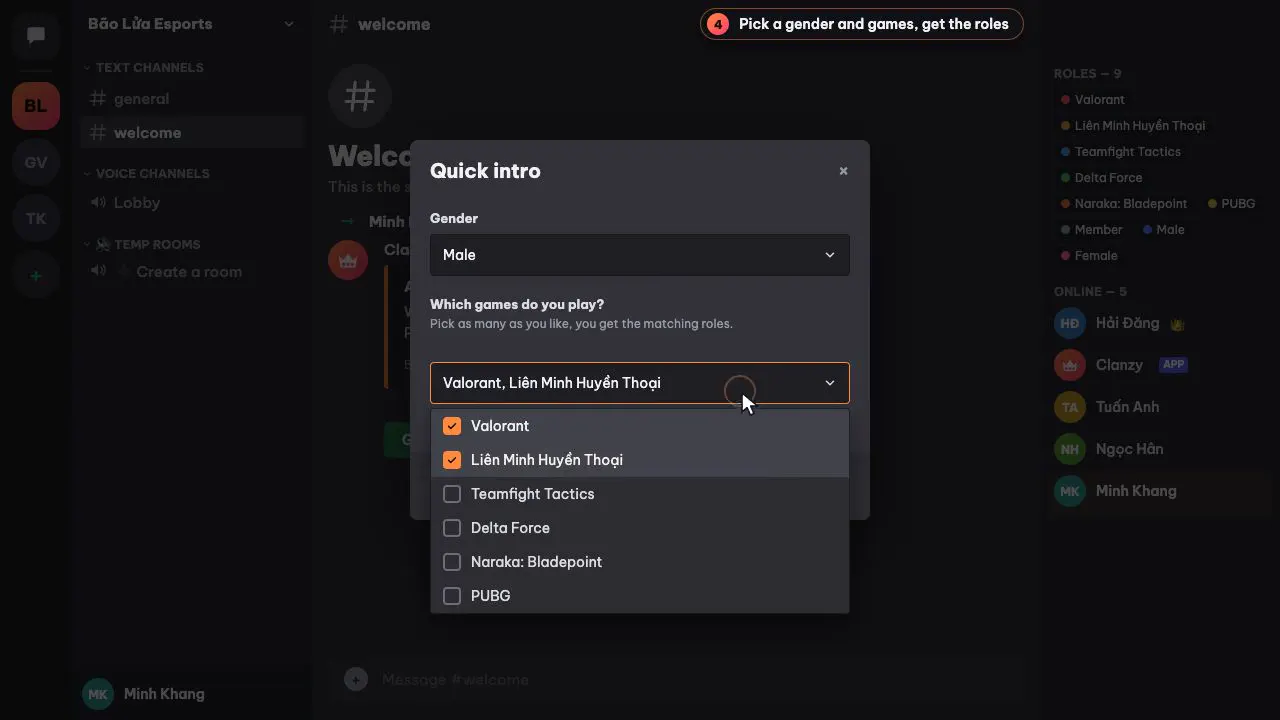
- A next step. Clanzy's welcome card has a Get started button that opens two quick questions (gender and the games they play) and hands out matching roles. The auto role guide covers that part in detail.
- Membership screening support. If your server makes people accept rules first, the bot should wait until they do. Clanzy does, and each person is welcomed once, not twice.
Set up a welcome bot with Clanzy
1. Add Clanzy to your server
Use the Add to Discord button at the top of this page, pick your server and keep the suggested permissions. Clanzy asks for what it needs to create channels, manage roles and run voice rooms. It does not ask for Administrator and it does not read message content.
2. Create the welcome channel
In any channel, type:
/setup welcometo create only the welcome channel, or/setup allto create the welcome channel, game roles, a Member role, gender roles and a ➕ Create a room voice hub in one go.
Both need the Manage Server permission. Running them again reuses what already exists, so you will not end up with two welcome channels. If you already have a welcome channel, pick it in the dashboard instead.
3. Write your own message
Clanzy starts with a default message: "Welcome {user} to {server}! You are member #{memberCount}." followed by a line asking them to press Get started. To change it, log in to the dashboard at app.clanzy.app with Discord, open your server and edit the welcome text. You can use:
| Placeholder | Becomes |
|---|---|
{user} | A mention of the new member |
{username} | Their username, without a ping |
{server} | Your server's name |
{memberCount} | The member count, for "you are member #312" |
The message can be up to 1,500 characters. You can also hide the Get started button if you only want a greeting, switch welcomes off, or change the bot's language between English and Vietnamese.
4. Send yourself a test
Type /setup welcome-test. Clanzy posts the saved card in your welcome channel, marked as a test message from an
admin, without counting it as a real welcome. Press Get started on it to walk through the questions exactly as a
newcomer would. The dashboard has the same test button.
How to write a welcome message people read
Most welcome messages fail because they try to do everything. A few rules that work in gaming servers:
- Lead with the person. Put
{user}in the first line so the ping lands on something friendly. - One action, not five. "Press Get started to pick your games" beats a list of seven channels to visit.
- Keep the rules elsewhere. Link your rules channel or let membership screening handle them. A welcome is not a terms of service.
- Sound like your server. A competitive team and a casual friends server should not greet people the same way.
- Keep it short enough to read on a phone. Two or three lines is plenty.
A few examples you can adapt:
Hey {user}, welcome to {server}. Press Get started, pick the games you play and you will see their channels right away.
{user} just joined as member #{memberCount}. Grab your roles below, then jump into ➕ Create a room when you want to play.
Troubleshooting
Nothing is posted when someone joins. Check that a welcome channel is set and welcomes are on (/config view
shows both). Then open the channel's settings and make sure the Clanzy role can view the channel, send messages and
embed links there. A channel override that denies @everyone can also block the bot if its role is not allowed.
The test works but real joins do not get a card. If membership screening is on, the card appears after the newcomer accepts the rules, not the moment they join. That is intended.
The Get started button gives "Could not assign" for some roles. Discord only lets a bot give roles that sit below its own role. Open Server Settings → Roles and drag the Clanzy role above your game roles. On mobile, open Settings → Roles and use the reorder option.
The message shows {name} as plain text. Only the four placeholders above are replaced. The dashboard flags
unknown placeholders before you save.
Welcome bot or all-in-one setup
If all you want is a greeting, a welcome bot is a small job. Most gaming servers end up needing three things around
it: the greeting, game roles so people see the right channels, and voice rooms to play in. Clanzy covers those three
with one /setup all, and every slash command is listed on the Clanzy commands page. If you also
need moderation, logging or automod, read our comparison with VoiceMaster and Carl-bot
for an honest look at which bot fits which job.
Everything in this guide is on the free plan; see Clanzy pricing for what Pro and Own bot add.
Questions people ask
Can Discord send welcome messages without a bot?
Yes. In Server Settings, Overview, pick a System Messages channel and turn on the random welcome message. Discord picks the line from its own list, so you cannot write your own text.
Why did my welcome bot not post anything?
Usually the welcome channel is not set, welcomes are turned off, or the bot cannot send messages or embed links in that channel. Check the channel permissions for the bot's role, then run a test.
Will members be welcomed twice if my server uses membership screening?
Not with Clanzy. It waits until the newcomer accepts the rules, then posts the welcome card once.
Can I write the welcome message in my own words?
Yes. In the Clanzy dashboard you can replace the default text and use {user}, {username}, {server} and {memberCount}, up to 1,500 characters.
Is the Clanzy welcome bot free?
Yes. Welcome messages, intro questions and temp voice rooms are all on the free plan.
Keep reading
Discord Auto Role Bot: Join Roles, Reaction Roles and Role Questions
How to give roles automatically on Discord: join roles, reaction roles, button and question-based roles, Discord Onboarding, and fixing role hierarchy errors.
5 min read