Discord Auto Role Bot: Join Roles, Reaction Roles and Role Questions
How to give roles automatically on Discord: join roles, reaction roles, button and question-based roles, Discord Onboarding, and fixing role hierarchy errors.
- Author
- The Clanzy team
- Updated
- Reading time
- 5 min read
Short answer
There are three ways to hand out roles automatically on Discord: a join role everyone gets, self-assign roles (reaction roles or buttons), and questions that map answers to roles. Clanzy uses questions: newcomers press Get started, pick the games they play, and get the matching roles. Whatever bot you use, its role must sit above the roles it gives.
Steps at a glance
- 1
Add the bot. Add Clanzy with the suggested permissions, which include Manage Roles but not Administrator.
- 2
Create the roles. Type /setup onboarding (or /setup all) to create a role for each game on your list plus gender roles.
- 3
Edit the game list. In the dashboard, add or remove games (up to 25) and map them to existing roles if you already have them.
- 4
Fix the hierarchy. In Server Settings, Roles, drag the Clanzy role above every role it should hand out.
- 5
Test it. Run /setup welcome-test and press Get started to pick games as a newcomer would.
Roles decide what a member can see and do in your server. In a gaming community they also do something social: they show who plays what, so people can find a squad. Handing them out by hand works for ten members. At a hundred new joins a week, you need a Discord auto role bot.
This guide explains the three common ways to give roles automatically, what Discord can do natively, and how to set up game roles with Clanzy. It ends with the one problem every role bot runs into: the role hierarchy.
Three ways to give roles automatically
| Method | How members get the role | Good for |
|---|---|---|
| Join role | Everyone gets it the moment they join | A basic Member role |
| Reaction roles (or buttons) | Members react to a message, or press a button, to pick roles | Games, regions, ping roles |
| Questions | Members answer a short form, answers map to roles | Onboarding new members in one step |
Join roles are simple but blunt: everyone gets the same role, including spam accounts that never pass your rules. If your server uses membership screening, check that the bot waits for it.
Discord reaction roles are the classic approach. An admin posts a message ("react with 🎯 for Valorant"), the bot watches reactions on it, and adds or removes roles. They work, but the message has to stay pinned and undeleted, a long list of emoji is hard to read on a phone, and newcomers often never scroll up to find it. Many bots now offer buttons or dropdown menus instead of emoji for the same idea.
Questions put the choice in front of the newcomer at the moment they join, which is when they are most likely to answer. This is the approach Discord's own Onboarding uses, and the one Clanzy uses.
The native way: Discord roles and Onboarding
Before any bot, create the roles:
- Open Server Settings → Roles (on mobile: tap the server name, then Settings → Roles).
- Press Create Role, name it after the game, pick a color and leave most permissions off. Game roles rarely need anything beyond what @everyone has.
- If the role should unlock a channel, open that channel's settings, go to Permissions, and allow the role to view it.
If your server has Community turned on, Server Settings → Onboarding lets you add questions such as "Which games do you play?" and link each answer to roles and channels. It runs inside Discord's join flow and needs no bot. The trade-offs: it requires Community, it only runs during that flow, and you still need a bot for things like a visible welcome message or temp voice rooms.
Set up automatic game roles with Clanzy
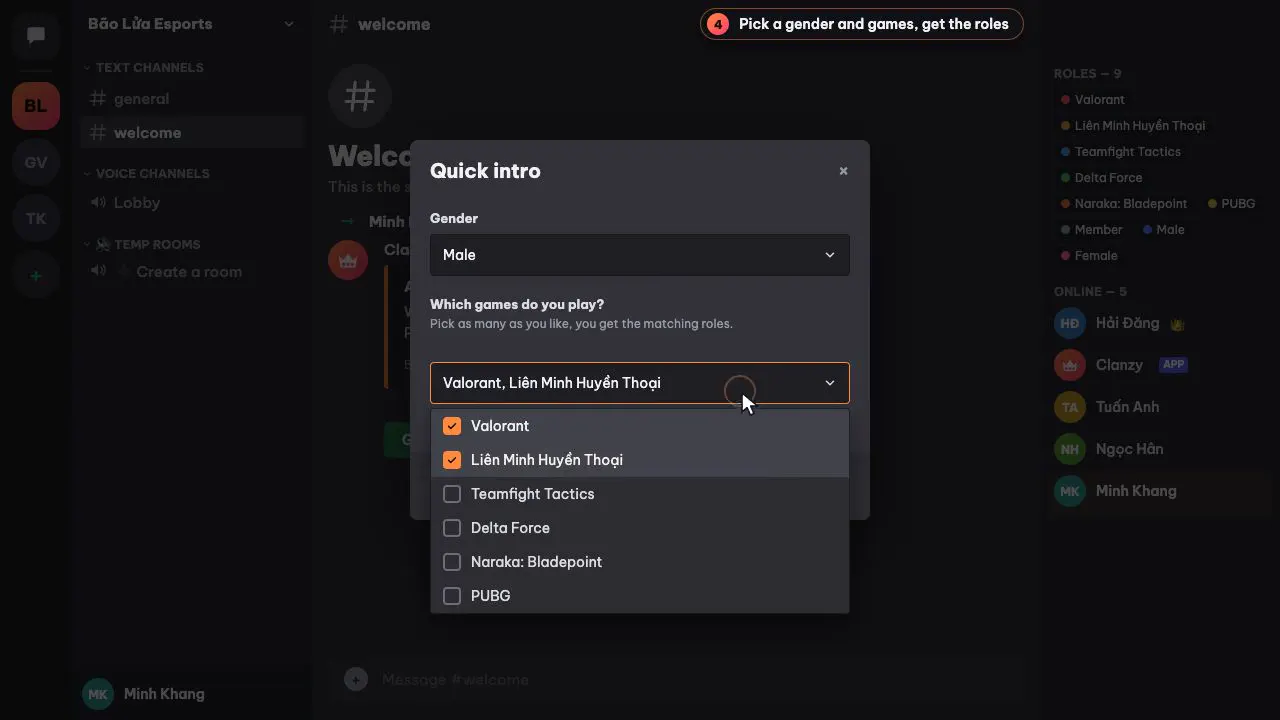
Clanzy asks two quick questions when a newcomer presses Get started on the welcome card: gender (optional, you
can switch it off) and the games they play. Picked games give roles; games they did not pick lose their roles.
Anyone can rerun the questions with /roles.
1. Add Clanzy
Press Add to Discord at the top of this page and keep the suggested permissions. Clanzy needs Manage Roles to hand out roles. It does not ask for Administrator.
2. Create the roles with one command
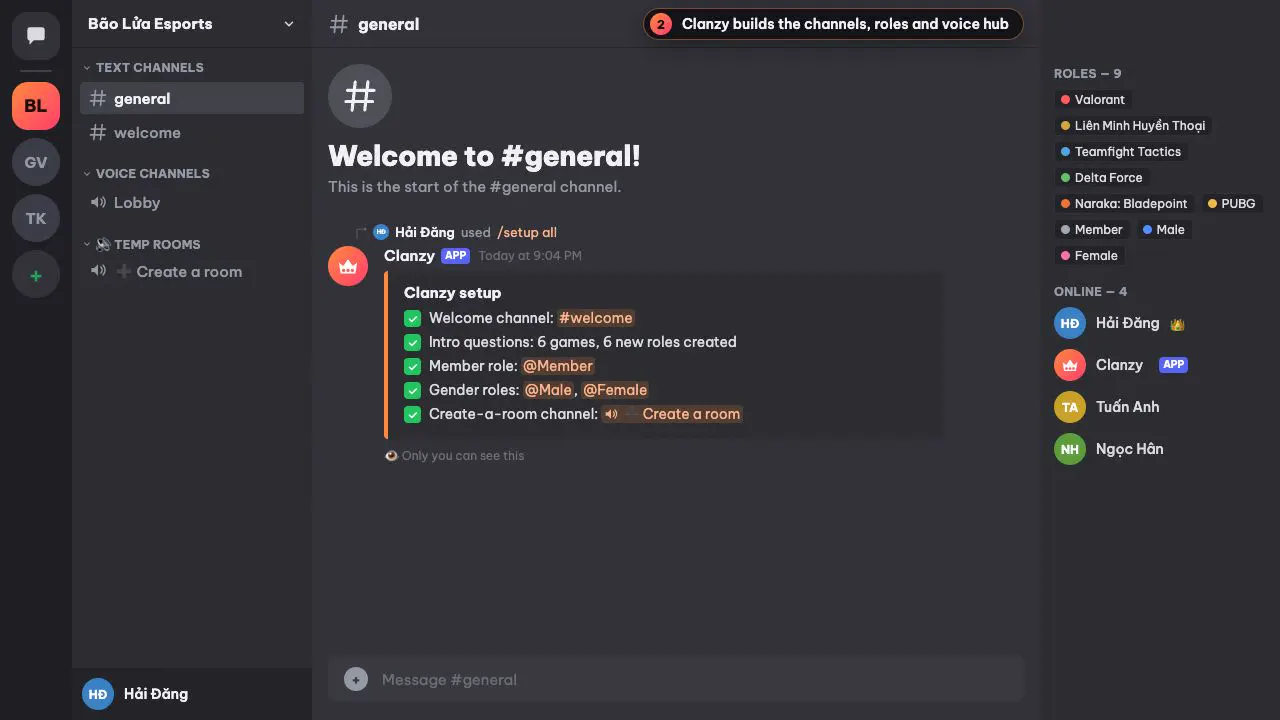
Type /setup onboarding to create the game and gender roles that are missing, or /setup all to also create the
welcome channel, a Member role and a ➕ Create a room voice hub. If a role with the same name already exists and
Clanzy can assign it, it is reused instead of duplicated. New roles are created just below the bot's own role, so it
can always give them.
3. Edit your game list
Log in to the dashboard at app.clanzy.app with Discord. Under the intro questions you can:
- add or remove games, up to 25 per server, with a preset list of popular titles to start from,
- map each game to an existing role if your server already has game roles,
- pick a Member role that everyone gets once they finish the questions,
- edit the gender options or switch the gender question off.
4. What the newcomer sees
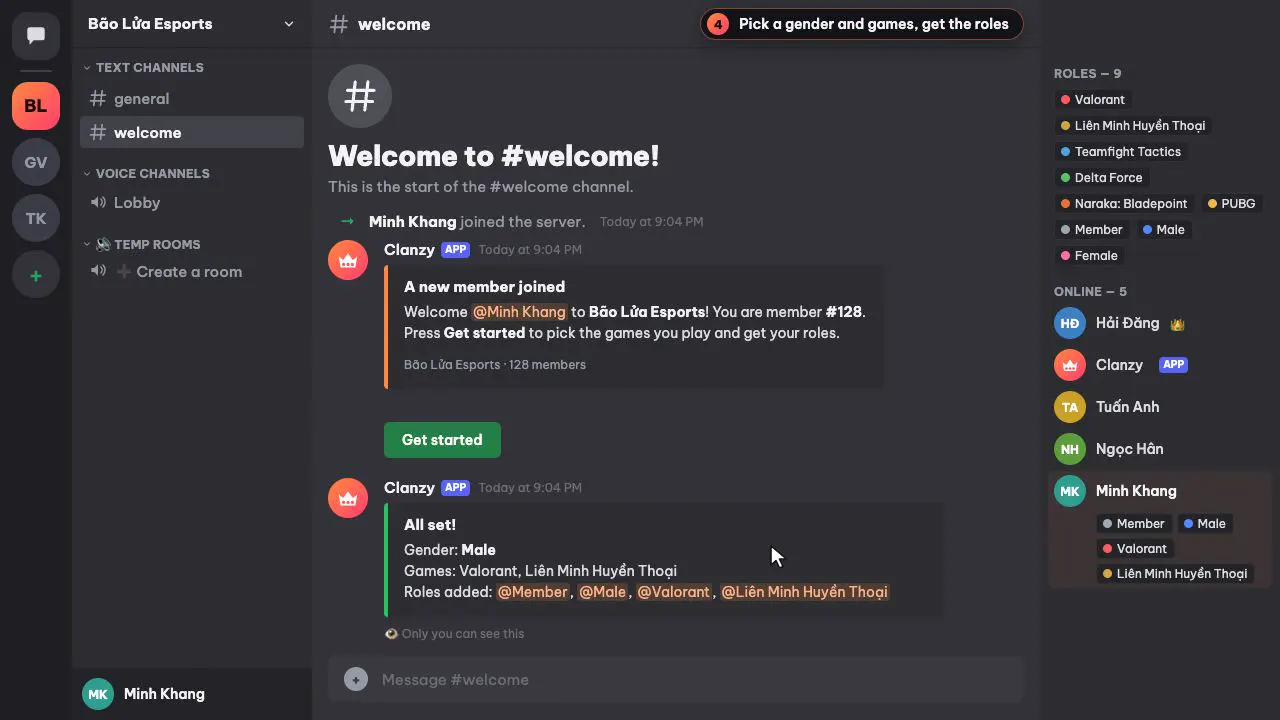
The newcomer presses Get started, picks a gender and any number of games, and submits. Clanzy replies privately
with what changed: "Roles added", "Roles removed", plus a reminder that /roles changes the answers later.
Fix "could not assign" errors: the role hierarchy
Every auto role bot hits this sooner or later. Discord lets a bot manage a role only if that role sits below the bot's highest role in Server Settings → Roles, even when the bot has Manage Roles. Roles you created before adding the bot usually sit above it.
Clanzy tells you which roles are affected in three places: the /setup report ("drag the Clanzy role above these
roles"), the dashboard, and the newcomer's result message ("Could not assign"). To fix it:
- Open Server Settings → Roles.
- Drag the Clanzy role above every game, gender and Member role it should hand out.
- Keep your admin and moderator roles above Clanzy. It never needs to sit above them.
On mobile, open Settings → Roles and use the reorder option to move the role.
Reaction roles or question-based roles?
Use reaction roles or buttons when roles are optional extras people pick later, such as notification pings or region tags, and your members are used to a "roles" channel. Use questions when the roles matter from the first minute, like game roles that unlock game channels, because every newcomer sees the question instead of having to find it.
Clanzy only does the question approach. If you need classic emoji reaction roles alongside it, a general-purpose bot can run them next to Clanzy; our comparison with VoiceMaster and Carl-bot covers what each bot is good at.
Next steps
Roles work best with a welcome message that points to them; the Discord welcome bot guide
covers that part. The full list of slash commands, including /roles and /setup onboarding, is on the
commands page, and all of this is on the free plan (see pricing).
Questions people ask
What is the difference between auto roles and reaction roles?
An auto role is given to everyone when they join. Reaction roles let members pick roles themselves by reacting to a message with an emoji. Button and question-based roles work like reaction roles, with buttons or menus instead of emoji.
Can Discord assign roles without a bot?
Yes, in Community servers. Server Settings, Onboarding lets you ask questions whose answers give roles. Join roles for everyone and roles outside Onboarding still need a bot.
Why does my bot say it cannot assign a role?
Discord only lets a bot give roles that sit below its own highest role. Drag the bot's role above those roles in Server Settings, Roles.
Does Clanzy support emoji reaction roles?
No. Clanzy asks newcomers which games they play in a form with a multi-select menu, and gives or removes the matching roles. Members can change their answers any time with /roles.
How many game roles can Clanzy hand out?
Up to 25 games per server, which is the most options a Discord select menu can hold.
Keep reading
Discord Welcome Bot: Set Up a Welcome Channel That Actually Helps
Set up a Discord welcome bot: compare Discord's built-in welcome messages with a bot, write a custom message, handle membership screening and test it.
5 min read